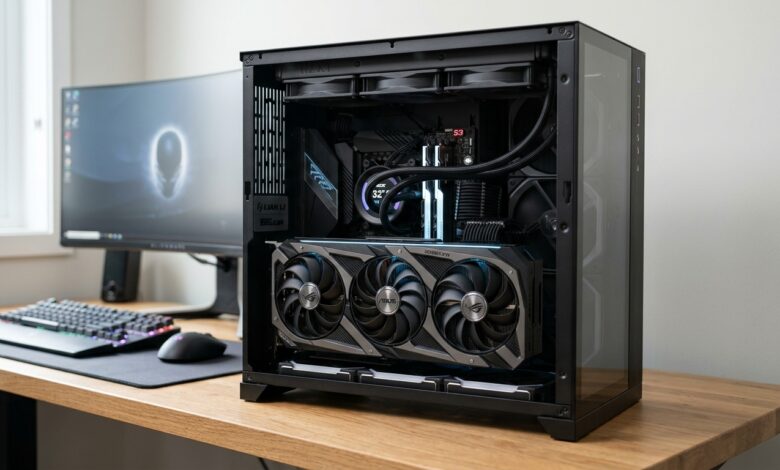
You launch an intensive graphic title on your computer. In addition, within twenty minutes your graphics card fans sound like a jet engine preparing for takeoff. Discovering effective ways to lower gpu temperature is crucial when thermal throttling begins slashing your frame rates during competitive online gaming sessions.
Modern graphics cards pack tens of billions of transistors into a tiny silicon die. Consequently, heavy 3D workloads create substantial heat. Furthermore, under heavy 3D rendering workloads, this density generates substantial thermal heat. In this comprehensive hardware guide, we examine safe thermal operating thresholds, explore the mechanics of thermal throttling. In addition, provide proven optimization techniques to keep your graphics card running cool, quiet, and stable.
Safe Benchmarks to Lower GPU Temperature While Gaming
Before making hardware adjustments, you must understand standard operating temperature baselines. Furthermore, modern graphics cards feature multiple internal thermal sensors. Specifically, they measure both core and hotspot temperatures:
- Idle Temperatures (30°C to 45°C): While browsing the desktop or watching videos. Furthermore, your GPU should remain comfortably cool. Many modern graphics cards feature zero-RPM fan modes where cooling fans turn off completely below 50°C.
- Optimal Gaming Load (65°C to 75°C): Under demanding gaming loads. Furthermore, temperatures in the upper 60s and low 70s represent exceptional cooling efficiency and allow maximum GPU Boost clock speeds.
- Acceptable Range (76°C to 83°C): Standard gaming temperatures for compact computer cases and single-fan designs. Furthermore, your GPU operates safely, though boost clocks may begin to decline slightly.
- Thermal Throttling Zone (84°C and Above): Once the core temperature surpasses manufacturer safety ceilings (typically 83°C for NVIDIA and 85°C to 90°C for AMD). Furthermore, onboard microcode aggressively slashes clock speeds and core voltages to prevent permanent silicon degradation.
Why GPU Temperatures Climb Dangerously High
Excessive graphics card heat stems from three factors. Specifically, these include case airflow restrictions and high power profiles.. In addition, degraded thermal paste.
First, computer cases with solid glass front panels restrict fresh air intake. Consequently, graphics card fans merely recirculate hot trapped air inside the chassis. Second, factory GPU firmware often pushes excessive voltage into the silicon die to ensure universal stability across all manufacturing tolerances. Specifically, factory thermal paste dries out after two or three years of daily thermal expansion cycles.. Furthermore, creating microscopic air pockets between the silicon die and copper heat sink.
Chassis Airflow Optimization: Intake vs Exhaust
| Fan Placement. | Airflow Orientation. | Cooling Impact on GPU. |
|---|---|---|
| Front Panel Fans. | Intake (pulls cool ambient room air). | Supplies fresh air directly toward GPU shroud. |
| Bottom Mount Fans. | Intake (draws air from beneath case). | Directs cold air straight into GPU fan blades. |
| Rear Panel Fan. | Exhaust (pushes hot air out of case). | Prevents heated GPU air from stagnating inside. |
| Top Panel Fans. | Exhaust (rises naturally with convection). | Expels rising heat generated by CPU and VRMs. |
Software Undervolting: The Ultimate Cooling Technique
The single most powerful method to reduce temperatures without losing a single frame per second is GPU undervolting. Furthermore, by utilizing MSI Afterburner, you can calibrate the voltage-frequency curve of your graphics card:
- Download MSI Afterburner: Install the utility and open the voltage-frequency curve editor by pressing Ctrl + F.
- Locate Target Boost Frequency: Identify your card standard boost clock (for example, 1950 MHz). Furthermore, notice that the factory curve provides approximately 1.050 volts to sustain this speed.
- Flatten the Voltage Curve: Adjust the curve so your GPU hits that exact 1950 MHz clock speed at only 0.925 volts. Furthermore, flatten all frequency points to the right of that marker.
- Test Stability: Run a demanding benchmark like 3DMark Time Spy or Unigine Superposition for twenty minutes. Furthermore, if the benchmark completes without artifacts, save your profile.
Consequently, undervolting reduces electrical power draw by 40 to 70 watts. Furthermore, in real-world gaming, this drops core temperatures by 6°C to 12°C while making your cooling fans virtually silent. For related system tuning advice, read our comprehensive tutorial on how to fix gaming PC micro-stutter. Specifically, for additional tech tutorials, browse our complete gaming guides.