You aim down sights in a competitive online first-person shooter, sweep your arm across your mousepad. Suddenly your crosshair stutters, jitters, or fails to register movement. Learning how to clean a gaming mouse and its optical sensor lens is essential when dirt, dead skin oils. Stray hairs compromise your tracking precision.
Modern gaming mice from brands like Logitech, Razer. SteelSeries feature ultra-sensitive optical sensors operating at up to 30,000 DPI. These high-speed optical sensors capture thousands of microscopic surface images every second. A single microscopic fabric thread or speck of dust trapped inside the sensor aperture can disrupt optical tracking completely. In this comprehensive maintenance guide, we explain how optical tracking works, outline safe cleaning materials. Provide step-by-step procedures to restore flawless mouse glide and click responsiveness.
How Optical Mouse Sensors Capture Surface Tracking
An optical gaming mouse functions like an ultra-high-speed microscopic camera pointed at your mousepad. An infrared LED or laser diode illuminates the texture of your mousepad fabric through an optical focusing lens.
The sensor CMOS imaging array records up to 20. Furthermore, 000 frames per second, feeding coordinates to an onboard Digital Signal Processor (DSP). The DSP compares microscopic shadow shifts between consecutive frames to calculate your exact hand displacement. When debris or dust sits on the tiny plastic sensor lens, the optical beam scatters erratically. Consequently, the sensor miscalculates displacement, producing cursor jitter, erratic spin-outs, or dead tracking spots.
Essential Supplies for Safe Mouse Cleaning
Before beginning maintenance, gather these safe electronic cleaning materials:
- 90%+ Isopropyl Alcohol (IPA): High-purity isopropyl alcohol dissolves skin oils and grime instantly and evaporates rapidly without leaving conductive moisture residue. Never use water on electronic switches.
- Precision Cotton Swabs: Tightly spun pointed cotton buds allow you to clean the tiny circular sensor cavity without shedding loose cotton fibers.
- Wooden Toothpicks: Wooden picks clean narrow body seams and scroll wheel crevices without scratching delicate plastic shells.
- Can of Compressed Air or Bulb Blower: Blasts away loose dust and hair without physical contact.
Cleaning Materials: What to Use vs What to Avoid
| Cleaning Supply. | Application Area. | Safety Assessment. |
|---|---|---|
| 90%+ Isopropyl Alcohol. | Exterior shells, PTFE skates & sensor swab. | Safe; dissolves hand sebum & evaporates fast. |
| Clean Compressed Air Can. | Sensor cavity, scroll wheel & switch gaps. | Safe; dislodges loose lint without contact. |
| Acetone / Nail Polish Remover. | Any part of gaming mouse. | Destructive; dissolves ABS plastic & melts lenses. |
| WD-40 or Mineral Oils. | Mouse buttons or scroll wheel encoder. | Destructive; shorts PCB traces & gunks contacts. |
| Tap Water or Wet Wipes. | Mouse shell seams & optical aperture. | Hazardous; risks corrosion & leaves mineral film. |
Step-by-Step Steps to Clean a Gaming Mouse and Sensor
Follow these four progressive maintenance steps to restore factory tracking performance:
- Disconnect and Power Down: Unplug the USB cable from your PC or toggle the power switch to “OFF” if using a wireless mouse. Remove any rechargeable batteries before cleaning.
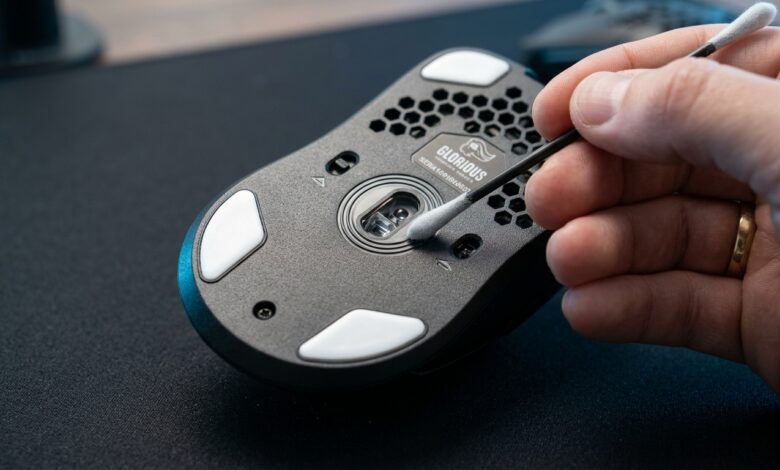
- Clear the Optical Sensor Aperture: Invert the mouse and inspect the small central sensor lens. Hold a can of compressed air upright (at least 6 inches away) and deliver two short bursts of air into the aperture. If stubborn grime adheres to the lens, lightly dampen a cotton swab with 90% isopropyl alcohol. Gently rotate the swab against the lens surface once. Let it air dry for two minutes.
- Clean PTFE Skates (Mouse Feet): Pure virgin-grade PTFE glide pads attract sticky grime along their beveled edges, increasing surface friction. Wipe the skates thoroughly with an alcohol-moistened microfiber cloth to restore buttery, frictionless gliding across your mousepad.
- De-Gunk Shell Grips and Seams: Run the wooden tip of a toothpick along the outer seams where the top shell meets the side grips to lift packed dead skin and dust. Wipe the main click buttons and side panels with a lightly dampened alcohol cloth to remove slippery hand oils.
Regular sensor maintenance guarantees pinpoint tracking accuracy, prevents sensor spin-outs. Extends the lifespan of your mechanical mouse switches. For related gaming hardware advice, read our comprehensive guide on why gaming laptops drop FPS on battery power. For more competitive hardware tutorials, check our complete gaming tech guides.